Your first yearbook
Photograph your yearbook
with your phone.
Try three to five pages first. Check the results before photographing the whole book.
1. Create your account
Choose a username, display name and a password of at least 12 characters. Save the recovery code somewhere safe. Use the same username to return to your books.
2. Start a private yearbook
Open the library, choose Create a yearbook, and enter its title, school and year. New books are private. A title such as “Lincoln High — Class of 1987” is easy to find later.
3. Set up your phone
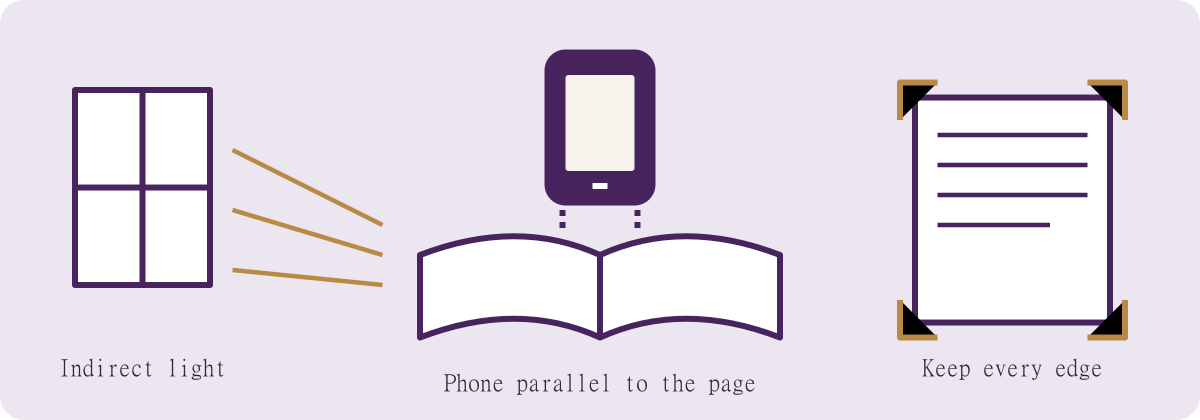
- Clean the lens. Use bright, indirect daylight; turn off the flash and avoid your own shadow.
- Place the book on a stable surface. Support the binding gently—don’t force fragile pages flat.
- Hold the phone parallel to the page, directly above it. Include all four edges, page numbers and any handwriting you want to preserve.
- Use the normal camera at its highest practical resolution. Avoid digital zoom, portrait blur, filters and screenshots.
- Tap small print to focus. Check it at full size before moving on. Retake blurred or glare-covered pages.
- For handwriting near the binding, move the light rather than bending the book. Take an extra close-up if needed and label it when you upload.
- Photograph in order. If a two-page spread is readable, keep it together; otherwise photograph each page separately without cutting off the gutter.
4. Upload several photographs
Open the book and choose Add photos. Select several images in your phone’s picker. Keep the page open until the upload result appears. Failed files are listed by name; retry only those. Duplicate images are rejected rather than added twice.
5. Put pages in order
Under Arrange pages, use the earlier/later arrow buttons on each photo. Rename pages with their printed numbers or a helpful description. Opening a book later preserves the order you set.
6. Read and review
Choose Open page for the digital reader. Move between pages and check small print. Open the large image to inspect detail. Uploading creates viewing copies; it does not yet automatically straighten, crop or restore the photo.
7. Share privately
Choose Share yearbook, give the link a label and choose its expiry. Copy it when created. Anyone holding that link can view this book, so send it only to your intended recipients. Revoke it in the same panel whenever you need to. Previously saved copies cannot be recalled.
You don’t need to make a book public to share it privately. Public publishing exposes the photographed pages, names, handwriting and comments to anyone. Only publish material you have permission to share.
8. Come back and keep going
Sign in and choose My yearbooks. Open your book to upload more pages, adjust the order or manage links. Download originals from their individual cards. Keep your own original files as well.